Key takeaways
- Compare the best webcams for work and streaming, from the C920s to the Brio 4K, with resolution, field of view, microphones, and privacy explained.
- Top Pick: Logitech C920s HD Pro
- Runner-up: Anker PowerConf C200
- Also consider: Razer Kiyo Pro
The best webcam for most buyers is the Logitech C920s HD Pro, because its 1080p video at 30 frames per second, its autofocus, its dual stereo microphones, and its built-in privacy shutter cover every part of an ordinary video call in one clip-on body that mounts on a monitor or a laptop lid in seconds and works with the calling apps people already use, which is the combination that matters most on a real desk, where the call starts in a minute, the light is whatever the room offers, and the camera must simply work rather than demand setup. A webcam decides how a person looks and sounds to everyone else on a call, because a soft or dark image makes a speaker look distant, a microphone that picks up the whole room makes every word harder to follow, and a camera that hunts for focus turns a short meeting into a distraction, while a good webcam keeps the face sharp, the voice clear, and the frame steady, so the call fades into the background and the conversation carries it. The C920s does that job with a 78-degree field of view that frames one person and a little of the desk without pulling in the whole room, with HD light correction that lifts a dim home office, and with a privacy shutter that slides closed when the call ends, so the camera is covered by a physical barrier rather than by a setting that must be remembered. That combination of reliable resolution, honest audio, a shutter, and a mount that fits almost any screen is why it leads this guide, and the fact that the same camera serves work calls, classes, family video chats, and job interviews is why it stays there, because a webcam that handles every ordinary call earns its place on the monitor.
If the work needs more than 1080p, the Logitech Brio 4K is the pick for the sharpest image in this guide, with 4K Ultra HD video at 30 frames per second, 1080p at 60 frames per second for smoother motion, and three field-of-view settings that frame one person tightly or a small group loosely, so it suits a desk where the camera is also the recording device for presentations and training videos. The Anker PowerConf C200 is the pick for a desk where 2K resolution and quiet microphones matter more than 4K, because its 2560 by 1440 image is visibly sharper than 1080p without the heavier files of 4K, and its AI noise-canceling microphones cut the keyboard clatter and room hum that make a call tiring to follow. The Razer Kiyo Pro is the pick for a desk where the light changes through the day, because its adaptive light sensor and HDR adjust the exposure as a window brightens or a lamp switches on, and its uncompressed 1080p at 60 frames per second keeps motion smooth for streaming and for calls where the speaker moves. The Elgato Facecam is the pick for a desk where the image is tuned by hand, because its Sony sensor, its fixed-focus prime lens, and its companion software give a creator control over exposure, white balance, and zoom that automatic cameras do not offer, and its uncompressed 1080p at 60 frames per second is the standard streaming expects. One honest note up front: every pick here is a USB webcam built for a desk, a monitor, or a laptop, and none of them is a camcorder, an action camera, or a conference-room camera, so a buyer who wants to film outdoors or cover a whole meeting room should look at a different class of camera instead, and a buyer who wants a camera built into a laptop should look at the laptop rather than at a separate webcam. Below, we compare five verified webcams across resolution, frame rate, field of view, microphones, light handling, and privacy, so the choice rests on the call and the room rather than on the camera that looks tidiest in a photograph. One scope note: every pick here is sized for one person at a desk, and none of them is a wide-angle room camera that belongs on a conference table.
As an Amazon Associate, we earn from qualifying purchases.
Table of Contents
- Quick Picks at a Glance
- Quick Comparison
- How to Choose a Webcam
-
- Logitech C920s HD Pro
-
- Anker PowerConf C200
-
- Razer Kiyo Pro
-
- Elgato Facecam
-
- Logitech Brio 4K
- Care and Safety Tips
- Frequently Asked Questions
- Conclusion
- Product and ASIN Reference
Quick Picks at a Glance
- Best overall: Logitech C920s HD Pro — 1080p video at 30 frames per second with autofocus, dual stereo microphones, and a privacy shutter, for work calls, classes, and interviews.
- Best 2K value: Anker PowerConf C200 — 2K resolution with AI noise-canceling microphones and a built-in privacy cover, for calls where the voice matters as much as the image.
- Best for changing light: Razer Kiyo Pro — adaptive light sensor and HDR with uncompressed 1080p at 60 frames per second, for streaming and rooms where the light moves.
- Best for creators: Elgato Facecam — a Sony sensor and a fixed-focus prime lens with companion software control, for tuned, streaming-grade 1080p video.
- Best 4K: Logitech Brio 4K — 4K Ultra HD at 30 frames per second with three field-of-view settings and Windows Hello, for the sharpest image in this guide.
Quick Comparison
| Product | Max Resolution | Frame Rate | Field of View | Microphones | Privacy | Tier |
|---|---|---|---|---|---|---|
| Logitech C920s HD Pro | 1080p | 30 fps | 78 degrees | Dual stereo | Shutter | Budget |
| Anker PowerConf C200 | 2K, 2560 x 1440 | 30 fps | 95, 78, 65 degrees | Dual AI noise-canceling | Cover | Mid-range |
| Razer Kiyo Pro | 1080p | 60 fps | 103, 90, 80 degrees | Built-in mic | None built in | Mid-range |
| Elgato Facecam | 1080p | 60 fps | 82 degrees | None | None built in | Premium |
| Logitech Brio 4K | 4K Ultra HD | 30 fps at 4K, 60 fps at 1080p | 90, 78, 65 degrees | Dual noise-canceling | Shutter | Premium |
How to Choose a Webcam
Start with the resolution, because the resolution decides how sharp the face looks on the other end of the call. A figure of 1080p, like the C920s, the Kiyo Pro, and the Facecam, is the standard every calling app handles well, and it is sharp enough for work calls, classes, and interviews on any screen, while a figure of 2K, like the Anker C200 at 2560 by 1440, adds visible detail in close-up face shots without demanding the bandwidth and storage of 4K, and a figure of 4K Ultra HD, like the Brio, is the sharpest image in this guide and suits a desk where the camera also records presentations and training videos. Read the resolution together with the frame rate before comparing, because a camera that records 4K at 30 frames per second and a camera that records 1080p at 60 frames per second serve different needs, and the smoother motion of 60 frames per second matters more for streaming and for a speaker who moves, while the extra detail of 4K matters more for a still presenter. Write down what the camera will do most, work calls, classes, streaming, or recording, and choose resolution that covers the heaviest of those, because a camera that cannot hold a sharp image through the main use will be replaced within a year.
Frame rate comes second, and it decides whether motion looks smooth or choppy. A rate of 30 frames per second, like the C920s, the Anker C200, and the Brio at 4K, is smooth enough for a seated speaker on a work call, while a rate of 60 frames per second, like the Kiyo Pro and the Facecam at 1080p, keeps hand gestures, head turns, and game streaming fluid, which is why the 60-frame cameras lead for creators and streamers. Check the frame rate at the resolution that will actually be used, because a camera that offers 60 frames per second only at 720p and 30 frames per second at 1080p is a different camera in practice from one that holds 60 frames per second at full 1080p, and the Kiyo Pro and the Facecam both hold their top frame rate at full 1080p. Count the moving parts of a normal call before ordering, and choose a frame rate that covers them, because a camera that stutters when the speaker gestures is a camera that distracts from every word.
Field of view comes third, and it decides how much of the room the call sees. A narrow view around 65 degrees, available on the Anker C200 and the Brio, frames one person tightly and keeps the background out, while a medium view around 78 to 82 degrees, like the C920s, the Facecam, and the middle settings of the Anker and the Brio, frames one person with a little of the desk, and a wide view around 90 to 103 degrees, like the Kiyo Pro and the widest settings of the Anker and the Brio, frames two people or a small group. Check whether the field of view adjusts before ordering, because a fixed view forces the buyer to move the camera or the chair to change the frame, while an adjustable view changes the frame in software, and the Anker, the Kiyo Pro, and the Brio all adjust. Picture the desk and count the people the camera must cover, and choose a view that fits them, because a view wider than the need pulls in clutter, and a view narrower than the need cuts off the second person.
Microphones come fourth, and they decide whether the voice carries the call. A camera with dual microphones, like the C920s, the Anker C200, and the Brio, captures the voice from two points and keeps it clear across a desk, while a camera with noise-canceling microphones, like the Anker C200 and the Brio, cuts the keyboard clatter, the fan hum, and the room echo that make a call tiring to follow, and a camera with no microphone at all, like the Facecam, expects a separate microphone and suits a desk where a dedicated microphone already sits on an arm. Check what the microphone does before ordering, because a camera bought for its image and used for its voice will disappoint if the microphone picks up the whole room, and a camera with no microphone at all will stay silent until a separate microphone is added. Listen to the room before ordering, and choose microphones that cover it, because a noisy room needs noise canceling, a quiet room needs only a clear microphone, and a desk with a dedicated microphone needs none at all.
Finally, weigh the light handling and the privacy, because a webcam lives on the monitor and faces the room. A camera with automatic light correction, like the C920s and the Brio, lifts a dim home office and tames a bright window, while a camera with an adaptive sensor and HDR, like the Kiyo Pro, adjusts as the light changes through the day, and a camera with manual control, like the Facecam through its companion software, lets a creator set the exposure and the white balance by hand. Check the privacy cover before ordering, because a physical shutter or cover, like the ones on the C920s, the Anker C200, and the Brio, closes the lens with a slide rather than with a setting, while a camera without one, like the Kiyo Pro and the Facecam, needs a separate cover or a habit of unplugging. The camera that holds a sharp image in the real light of the room, keeps the voice clear, frames the right people, and closes with a slide is the camera that gets used, and the camera that gets used is the only one that helps.
1. Logitech C920s HD Pro

Tier: Budget
The Logitech C920s HD Pro is the best webcam for most buyers, because its 1080p video at 30 frames per second, its autofocus, its dual stereo microphones, and its built-in privacy shutter cover every part of an ordinary video call in one clip-on body that mounts on a monitor or a laptop lid in seconds and works with the calling apps people already use. The C920s is a clip-on webcam built for video calling first, which means its autofocus keeps a face sharp as the speaker leans in or back, its HD light correction lifts a dim home office, and its 78-degree field of view frames one person and a little of the desk without pulling in the whole room, so the call looks composed without any adjustment. The universal clip fits a monitor, a laptop lid, or a tripod, the camera connects over USB-A, and the privacy shutter slides closed when the call ends, so the lens is covered by a physical barrier rather than by a setting that must be remembered. The listing data reviewed carries the identifier for the exact listing pinned in the reference table below.
The published figures back the design up. The resolution of 1080p at 30 frames per second is the standard every calling app handles well, which is why the C920s looks sharp on Zoom, Microsoft Teams, Google Meet, Skype, and FaceTime without demanding extra bandwidth or storage, and the autofocus tracks the speaker through a call instead of locking once and drifting soft. The dual stereo microphones capture the voice from two points and keep it clear across a desk, the HD light correction adjusts the exposure for a dim room or a bright window, and the 5-foot cable reaches from the monitor to the computer without a stretch. The body is compact enough to ride on a laptop lid in a bag, and the tripod-ready mount means the same camera can sit on a small tripod for a recording or a class. The listing data reviewed carries the identifier for the exact listing pinned in the reference table below.
The qualifications are about the resolution, the frame rate, and the field of view. The resolution of 1080p is below the Anker C200 below at 2K and the Brio below at 4K, so a buyer who records presentations and wants the sharpest image should favor one of those. The frame rate of 30 frames per second is below the Kiyo Pro and the Facecam below at 60 frames per second, so a buyer who streams or gestures through a call should favor one of those. The field of view is fixed at 78 degrees, so a buyer who needs a tight frame for one person or a wide frame for two should favor the Anker C200 or the Brio below, which adjust. What the money buys is a clip-on webcam with 1080p video at 30 frames per second, autofocus, dual stereo microphones, HD light correction, a privacy shutter, and a universal clip, at a budget tier. For a desk that needs a camera that simply works on every call, that is a coherent place for it to sit.
Specs
- Resolution: 1080p at 30 fps, per the maker
- Field of view: 78 degrees, per the maker
- Focus: Autofocus, per the maker
- Microphones: Dual stereo, per the maker
- Light correction: HD automatic, per the maker
- Privacy: Built-in shutter, per the maker
- Connection: USB-A, per the maker
- Cable: 5 ft, per the maker
- Mount: Universal clip, tripod-ready, per the maker
- Compatibility: Windows, macOS, ChromeOS, per the maker
- Use: Video calls, classes, interviews, per the maker
2. Anker PowerConf C200
Tier: Mid-range
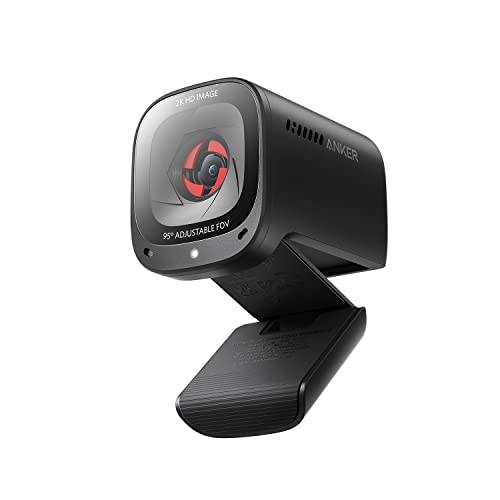
The Anker PowerConf C200 is the best webcam for a desk where 2K resolution and quiet microphones matter more than 4K, because its 2560 by 1440 image is visibly sharper than 1080p without the heavier files of 4K, and its AI noise-canceling microphones cut the keyboard clatter and room hum that make a call tiring to follow. The C200 is a clip-on webcam built for meetings, which means its adjustable field of view frames one person tightly at 65 degrees or a small group loosely at 95 degrees, its low-light correction lifts a dim evening call, and its autofocus keeps the speaker sharp through a long meeting. The built-in privacy cover slides closed when the call ends, the camera connects over USB-C, and the body clips to a monitor or a laptop lid, so the camera is ready in seconds and covered just as fast. The listing data reviewed carries the identifier for the exact listing pinned in the reference table below.
The published figures back the design up. The resolution of 2K at 30 frames per second sits between 1080p and 4K, which is why the C200 shows more facial detail than the C920s above without the bandwidth and storage demands of the Brio below, and the three field-of-view settings change the frame in software rather than by moving the camera. The dual microphones use AI noise canceling to separate the voice from keyboard clatter, fan hum, and room echo, which matters on a desk where the call shares the room with a computer and a keyboard, and the low-light correction adjusts the exposure when the room darkens. The autofocus tracks the speaker, the privacy cover is built into the body so it cannot be lost, and the USB-C connection matches the port on a modern laptop. The listing data reviewed carries the identifier for the exact listing pinned in the reference table below.
The qualifications are about the frame rate, the resolution, and the mount. The frame rate of 30 frames per second is below the Kiyo Pro and the Facecam below at 60 frames per second, so a buyer who streams or gestures through a call should favor one of those. The resolution of 2K is below the Brio below at 4K, so a buyer who records presentations and wants the sharpest image should favor the Brio. The mount is a clip built for a monitor or a laptop lid, so a buyer who wants the camera on a tripod for recording should check the mount before ordering. What the money buys is a clip-on webcam with 2K resolution at 30 frames per second, three field-of-view settings, AI noise-canceling dual microphones, low-light correction, a built-in privacy cover, and USB-C, at a mid-range tier. For a desk where the voice matters as much as the image, that is a coherent place for it to sit.
Specs
- Resolution: 2K, 2560 x 1440 at 30 fps, per the maker
- Field of view: 95, 78, and 65 degrees adjustable, per the maker
- Focus: Autofocus, per the maker
- Microphones: Dual AI noise-canceling, per the maker
- Light correction: Low-light correction, per the maker
- Privacy: Built-in cover, per the maker
- Connection: USB-C, per the maker
- Mount: Clip-on for monitor or laptop, per the maker
- Compatibility: Windows, macOS, per the maker
- Use: Meetings, video calls, classes, per the maker
3. Razer Kiyo Pro

Tier: Mid-range
The Razer Kiyo Pro is the best webcam for a desk where the light changes through the day, because its adaptive light sensor and HDR adjust the exposure as a window brightens or a lamp switches on, and its uncompressed 1080p at 60 frames per second keeps motion smooth for streaming and for calls where the speaker moves. The Kiyo Pro is a webcam built for streaming first, which means its large sensor gathers more light than a typical meeting camera, its adjustable field of view frames one person tightly at 80 degrees or a wider scene at 103 degrees, and its USB 3.0 connection carries uncompressed video without the compression that softens a stream. The lens is covered in Corning Gorilla Glass, the mount is an L-shaped joint that tilts and turns on a monitor or a tripod, and the camera works with OBS, XSplit, Zoom, and Microsoft Teams, so the same camera serves a stream and a work call. The listing data reviewed carries the identifier for the exact listing pinned in the reference table below.
The published figures back the design up. The sensor is a Type 1/2.8 CMOS unit, which is larger than the sensor in a typical meeting webcam, and that size is why the Kiyo Pro holds detail in a dim room where a smaller sensor turns the image grainy, while the adaptive light sensor and HDR adjust the exposure continuously instead of locking it once at the start of the call. The uncompressed 1080p at 60 frames per second keeps hand gestures, head turns, and game play fluid, which is the frame rate streaming expects, and the three field-of-view settings change the frame without moving the camera. The built-in microphone covers a call when no separate microphone is connected, the USB 3.0 connection carries the uncompressed signal, and the companion software adjusts the field of view, the exposure, and the focus. The listing data reviewed carries the identifier for the exact listing pinned in the reference table below.
The qualifications are about the privacy, the resolution, and the microphone. The Kiyo Pro has no built-in privacy shutter, so a buyer who wants the lens covered by a slide should favor the C920s, the Anker C200, or the Brio in this guide, which all close with a shutter or a cover. The resolution of 1080p is below the Anker C200 above at 2K and the Brio below at 4K, so a buyer who records presentations and wants the sharpest image should favor one of those. The built-in microphone is a single unit rather than a noise-canceling pair, so a buyer in a noisy room should favor the Anker C200 or the Brio, or pair the Kiyo Pro with a separate microphone. What the money buys is a streaming webcam with uncompressed 1080p at 60 frames per second, HDR, an adaptive light sensor, a large CMOS sensor, three field-of-view settings, and USB 3.0, at a mid-range tier. For a desk where the light moves and the motion must stay smooth, that is a coherent place for it to sit.
Specs
- Resolution: 1080p at 60 fps uncompressed, per the maker
- Sensor: Type 1/2.8 CMOS, per the maker
- Field of view: 103, 90, and 80 degrees adjustable, per the maker
- Light handling: Adaptive light sensor and HDR, per the maker
- Lens: Corning Gorilla Glass, per the maker
- Microphone: Built-in mic, per the maker
- Connection: USB 3.0, per the maker
- Mount: L-shaped joint, monitor or tripod, per the maker
- Software: Companion software for field of view and exposure, per the maker
- Compatibility: Windows, macOS, per the maker
- Use: Streaming, gaming, video calls, per the maker
4. Elgato Facecam

Tier: Premium
The Elgato Facecam is the best webcam for a desk where the image is tuned by hand, because its Sony sensor, its fixed-focus prime lens, and its companion software give a creator control over exposure, white balance, and zoom that automatic cameras do not offer, and its uncompressed 1080p at 60 frames per second is the standard streaming expects. The Facecam is a webcam built for creators, which means its fixed focus holds everything from 30 centimeters to infinity sharp without hunting, its prime lens is built for indoor light rather than for a bright studio, and its onboard memory keeps the settings when the camera moves between computers. The body mounts on a monitor or a tripod, the camera connects over USB-C, and the companion software adjusts the image like a camera rather than like a meeting accessory, so the creator sets the look once and the camera holds it. The listing data reviewed carries the identifier for the exact listing pinned in the reference table below.
The published figures back the design up. The sensor is a Sony STARVIS CMOS unit, which gathers light well indoors, and that sensitivity is why the Facecam holds a clean image in a dim room where a smaller sensor turns grainy, while the prime lens at f/2.4 and the 82-degree field of view frame one person with a natural perspective rather than the stretched edges of a very wide lens. The uncompressed 1080p at 60 frames per second keeps motion fluid for streaming and recording, the fixed focus never hunts during a call, and the onboard memory stores the exposure, white balance, and zoom settings on the camera itself. The dimensions of 4.6 by 1.5 by 3.1 inches keep the body compact on a monitor, the weight of 3.4 ounces keeps it light on a laptop lid, and the detachable USB-C cable can be swapped if it wears out. The listing data reviewed carries the identifier for the exact listing pinned in the reference table below.
The qualifications are about the microphone, the privacy, and the focus. The Facecam has no built-in microphone, so a buyer without a separate microphone should favor the C920s, the Anker C200, or the Brio in this guide, which all carry microphones, or pair the Facecam with a dedicated microphone. The Facecam has no built-in privacy shutter, so a buyer who wants the lens covered by a slide should favor one of those same three. The focus is fixed rather than autofocus, so a buyer who moves toward and away from the camera through a call should favor the C920s, the Anker C200, the Kiyo Pro, or the Brio, which all autofocus. What the money buys is a creator webcam with uncompressed 1080p at 60 frames per second, a Sony sensor, a fixed-focus prime lens, onboard memory, companion software control, and USB-C, at a premium tier. For a desk where the image is set by hand and held there, that is a coherent place for it to sit.
Specs
- Resolution: 1080p at 60 fps uncompressed, per the maker
- Sensor: Sony STARVIS CMOS, per the maker
- Lens: Prime lens, f/2.4, per the maker
- Field of view: 82 degrees, per the maker
- Focus: Fixed, 30 cm to infinity, per the maker
- Microphone: None built in, per the maker
- Privacy: None built in, per the maker
- Connection: USB-C, USB 3.0, per the maker
- Memory: Onboard memory for settings, per the maker
- Software: Companion software for exposure and white balance, per the maker
- Dimensions: 4.6 x 1.5 x 3.1 in, per the maker
- Weight: 3.4 oz, per the maker
- Use: Streaming, recording, video calls, per the maker
5. Logitech Brio 4K

Tier: Premium
The Logitech Brio 4K is the best webcam for the sharpest image in this guide, with 4K Ultra HD video at 30 frames per second, 1080p at 60 frames per second for smoother motion, and three field-of-view settings that frame one person tightly or a small group loosely, so it suits a desk where the camera is also the recording device for presentations and training videos. The Brio is a webcam built for the top of the range, which means its RightLight 3 automatic light correction lifts a dim room and tames a bright window, its dual omnidirectional microphones cancel noise from the room, and its infrared sensor supports Windows Hello facial recognition, so the same camera that runs the call also signs the computer in. The privacy shutter slides closed when the call ends, the camera connects over USB-C, and the 5x digital zoom reframes the shot in software, so the Brio covers a meeting, a recording, and a sign-in from one mount. The listing data reviewed carries the identifier for the exact listing pinned in the reference table below.
The published figures back the design up. The resolution of 4K Ultra HD at 30 frames per second is the sharpest image in this guide, which is why the Brio shows the most facial detail in a recording, while the 1080p at 60 frames per second setting keeps motion smooth when the speaker moves, and the three field-of-view settings at 90, 78, and 65 degrees change the frame without moving the camera. The dual microphones use noise canceling to keep the voice clear across a desk, the RightLight 3 correction adjusts exposure and white balance automatically, and the Windows Hello support signs in with a glance. The dimensions of 4.02 by 1.42 by 1.42 inches keep the body compact on a monitor, the weight of 2.22 ounces keeps it light on a laptop lid, and the universal clip fits a monitor, a laptop, or a tripod. The listing data reviewed carries the identifier for the exact listing pinned in the reference table below.
The qualifications are about the bandwidth, the mount, and the need. The 4K image demands more bandwidth and storage than 1080p, so a buyer on a slow connection or a small drive should favor the C920s above at 1080p or the Anker C200 above at 2K, which ask less of both. The Brio is the most capable camera in this guide, so a buyer who only takes ordinary work calls and never records should consider whether the extra detail earns its place, because the C920s above covers those calls at a budget tier. The 5x digital zoom reframes the shot in software, which crops the image rather than moving glass, so a buyer who zooms often should expect a softer image at the far end of the zoom. What the money buys is a 4K webcam with 4K Ultra HD at 30 frames per second, 1080p at 60 frames per second, three field-of-view settings, RightLight 3, dual noise-canceling microphones, Windows Hello, and a privacy shutter, at a premium tier. For a desk where the camera must deliver the sharpest image and record it too, that is a coherent place for it to sit.
Specs
- Resolution: 4K Ultra HD at 30 fps, 1080p at 60 fps, per the maker
- Field of view: 90, 78, and 65 degrees adjustable, per the maker
- Light correction: RightLight 3 automatic, per the maker
- Microphones: Dual omnidirectional noise-canceling, per the maker
- Zoom: 5x digital zoom, per the maker
- Privacy: Built-in shutter, per the maker
- Sign-in: Windows Hello facial recognition, per the maker
- Connection: USB-C, per the maker
- Mount: Universal clip, tripod-ready, per the maker
- Dimensions: 4.02 x 1.42 x 1.42 in, per the maker
- Weight: 2.22 oz, per the maker
- Compatibility: Windows, macOS, per the maker
- Use: Meetings, recording, presentations, per the maker
Care and Safety Tips
A webcam works best when it is matched to the desk before it is bought, and the check takes a minute. Measure the top edge of the monitor to confirm the clip fits, check the free USB port on the computer and whether it is USB-A or USB-C, and note where the cable will run, because a camera bought for the wrong port is the most common reason it ends up in a drawer. Aim the camera at eye level, because a camera that looks up from below the screen frames the chin and the ceiling, while a camera at eye level frames the face the way a conversation expects, and a monitor riser or a small tripod lifts a camera that sits too low. Keep the lens clean with a soft cloth, because a smudged lens softens every call, and close the privacy shutter or cover when the call ends, because a physical cover is the only barrier that cannot be opened by software.
Keep the camera away from liquids, because a webcam is built for a dry desk, and a spill on the lens or the cable needs a cloth first, since liquid in the body reaches the sensor and the electronics. Unplug the camera by the connector rather than by pulling the cable, because a cable pulled by its cord frays at the connector, and store the camera clipped to the monitor or in a drawer where it will not roll onto the floor. Check the companion software once after setup, because the field of view, the exposure, and the focus are set there on the cameras that offer them, and a camera left on its factory settings may frame too much of the room or expose too dark.
No CPSC recall covers the five picks in this guide. A search of the CPSC recall records found no notice naming the Logitech C920s, the Logitech Brio, the Razer Kiyo Pro, the Anker PowerConf C200, or the Elgato Facecam, and webcams as a class have a clean record in the recall database, with no webcam model recalled for a safety hazard. The nearest electronics recalls on record name different products and different makers, such as chargers, batteries, and power banks, rather than any webcam, so they do not apply here. A buyer should still check the product name on the listing when it arrives and compare it with the listing, because the product name is what identifies the exact item bought, and a used or second-hand webcam should be checked against the recall list before it is put on the desk. A model-name search at the CPSC database before buying remains the cheapest two-minute check for any desk electronics.
A final note on the class: a webcam keeps a desk connected, and the only lasting question it raises is whether it still matches the calls a year from now. A desk that gains streaming needs a camera with 60 frames per second and a wide field of view, and a desk that gains recording needs a camera with 2K or 4K resolution and a microphone that can carry a presentation, so the camera should be checked once a year against the calls it actually serves. A camera that cannot hold a sharp image in the real light of the room should be replaced by one with stronger light correction, because a soft image is the problem the camera was bought to fix, and a camera without a privacy cover will leave the lens open between calls. The camera that holds a sharp image in the real light, keeps the voice clear, frames the right people, and closes with a slide is the camera that gets used, and the camera that gets used is the only one that helps.
Frequently Asked Questions
What resolution does a webcam need for work calls?
A resolution of 1080p, like the C920s, the Kiyo Pro, and the Facecam in this guide, is sharp enough for work calls, classes, and interviews on any screen, while 2K, like the Anker C200 at 2560 by 1440, adds visible detail in close-up face shots, and 4K, like the Brio, is the sharpest image here and suits a desk where the camera also records presentations.
Is 60 frames per second worth it on a webcam?
It is when the speaker moves or streams, because 60 frames per second keeps hand gestures, head turns, and game play fluid, while 30 frames per second is smooth enough for a seated speaker on a work call. The Kiyo Pro and the Facecam in this guide both hold 60 frames per second at full 1080p, so check the frame rate at the resolution that will actually be used before ordering.
Do webcams need a privacy shutter?
They do not need one to work, but a physical shutter or cover, like the ones on the C920s, the Anker C200, and the Brio in this guide, closes the lens with a slide rather than with a setting, so the camera cannot be opened by software between calls. A camera without one, like the Kiyo Pro and the Facecam, needs a separate cover or a habit of unplugging.
Can a webcam replace a separate microphone?
It can for ordinary calls, because the C920s, the Anker C200, and the Brio in this guide all carry microphones, and the Anker and the Brio add noise canceling that cuts keyboard clatter and room hum. The Facecam has no microphone at all, so it expects a separate microphone, and a desk with a dedicated microphone on an arm needs no microphone in the camera.
Conclusion
The Logitech C920s HD Pro is the best webcam for most buyers, because its 1080p video at 30 frames per second, its autofocus, its dual stereo microphones, and its privacy shutter cover every part of an ordinary video call. The Anker PowerConf C200 is the pick for a desk where 2K resolution and quiet microphones matter, with 2560 by 1440 video, AI noise-canceling microphones, and a built-in privacy cover. The Razer Kiyo Pro is the pick for a desk where the light changes, with an adaptive light sensor, HDR, and uncompressed 1080p at 60 frames per second. The Elgato Facecam is the pick for a desk where the image is tuned by hand, with a Sony sensor, a fixed-focus prime lens, and companion software control. The Logitech Brio 4K is the pick for the sharpest image, with 4K Ultra HD at 30 frames per second, 1080p at 60 frames per second, and three field-of-view settings. Measure the monitor edge, match the resolution to the call, count the microphones, and check the shutter. The camera that holds a sharp image in the real light, keeps the voice clear, frames the right people, and closes with a slide is the camera that gets used, and the camera that gets used is the only one that helps.